Approximately a year ago, I discovered Raycast and wrote a blog post about it. Since then, I’ve learned a lot, and Raycast has also gained many new features.
I decided to write a blog post series about general learnings, tips, and tricks about Raycast to show others how to gain more productivity in their daily workflows and demonstrate what Raycast is capable of beyond just productivity tasks.
In this blog post, I will show you the easiest way to create your own command 🚀.
🔗 Quicklinks Link to heading
Quicklinks are the easiest way to extend Raycast with a new command. Quicklinks themselves are the same thing as entering open <url> from the terminal. But in Raycast, you get a nice decoration on top of it.
Let’s say we want to search for something on the Amazon website.
The typical workflow for that would be:
- Open the browser of your choice or create a new tab.
- Move to the address bar and type in
https://amazon.comand wait for the page to load. - Click into the Amazon search bar.
- Type in whatever you want to search for.
These are a lot of steps just to search for something on Amazon. Let’s do this with a Quicklink in Raycast itself.
- Press
⌥+Spaceto activate Raycast. - Type
amaand press enter onSearch Amazon. - Now the
Queryfield gets the focus, and you just type in what you would normally search for on the Amazon website and hitEnter.
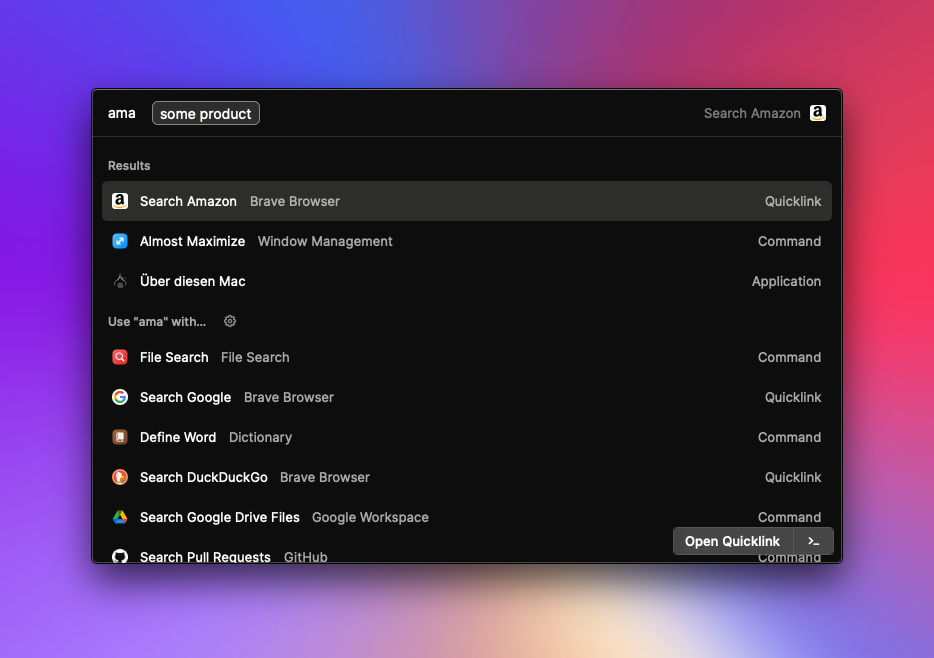
The result is that the Amazon website is opened in your default browser with the search query which you entered in Raycast.
As you can see, it’s one step less to get there. You may think that is not much, but this workflow has some significant benefits.
- Activating Raycast and typing
amais pretty fast in comparison to opening a browser. - The
Queryfield is instantaneously loaded and requires no extra loading time because it is already loaded. - No mouse moving is required in the whole workflow.
The result of both workflows is the same, but the Raycast one is much faster for the user. You also gain a lot of productivity when you have multiple commands like this one, and it would always be the same workflow to get there.
Bonus tip: You can also set a hotkey for the command. This has the great benefit that you just need to press the key combination, and Raycast will activate the command for you and jump directly into the query field. This would remove steps 1 and 2 and shorten the whole thing to just 2 actions for the user.
🔍 Creating the Quicklink “Search Amazon” Link to heading
How do we get such a Quicklink? The answer is the same answer as for most questions in Raycast - there is a Raycast command for that 😉.
The one we are looking for is called Create Quicklink.

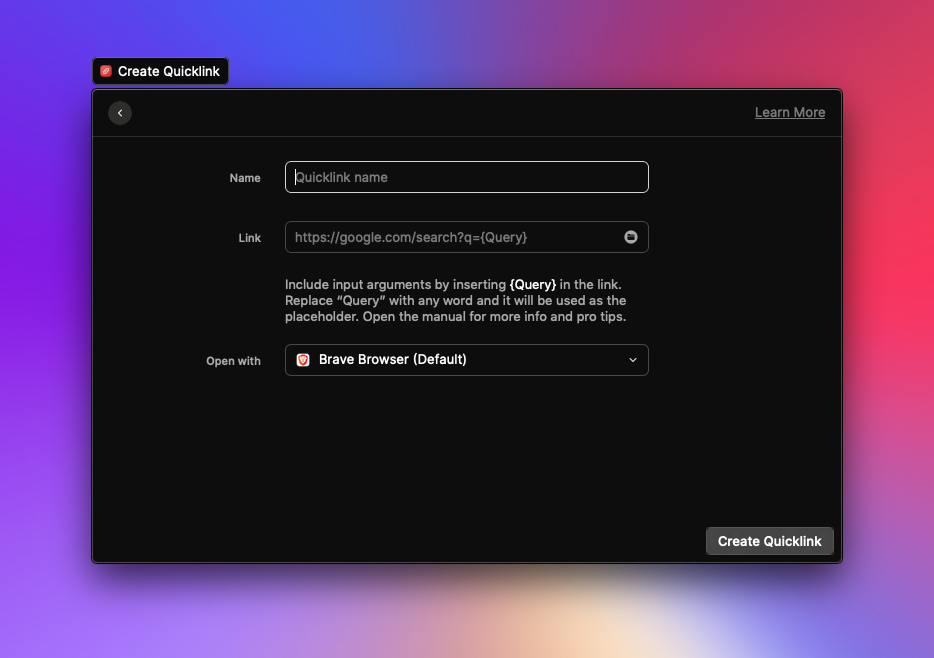
Creating a Quicklink is a straightforward process.
-
Give your command a name.
First, you need to give your Quicklink command a name. In our case, this is
Search Amazon. -
Which link should be opened?
After that, we need to enter the Link aka URL. As you can already see, there is a magic text block named
{Query}in the placeholder text of that Link field. This is the text part that gets replaced with the text you type in theQueryfield of the command. You would not get aQueryfield in Raycast if you omit the{Query}in the Link when you just want to open a website.Also, Raycast will make the
${Query}part URL safe, so you can e.g., type in spaces, which are normally not supported in URL, and it will add the URL-safe characters for you.But how do we know which URL we need? Most of the time you just need to go to the website and the search term of your choice. After that, you look into the address bar and search for your search term. In that way, you will see which URL you need and which part of it is the
{Query}part.In the case of
amazon.com, the link would behttps://www.amazon.com/s?k=raycast(I omit the other parameters because they are not required). You will see the Amazon website with the search termraycastwhen you click on the link. To make this now queryable from Raycast itself, we replaceraycastwith${Query}.The full link to paste into Raycast would be
https://www.amazon.com/s?k={Query}. -
Which application should get loaded?
As the last step, we can define which application should get opened. By default, Raycast will select your default browser, which is what we want in our case.
After that, you get the Search Amazon command you see above.
If you want to change the Quicklink: Just select it and press ⌘ + K and activate Edit Quicklink or just press ⌘ + E.
📖 Conclusion Link to heading
Quicklinks are the easiest form of creating a custom command in Raycast. There is much more to cover like script commands or extensions, but these are topics for other blog posts 😀.